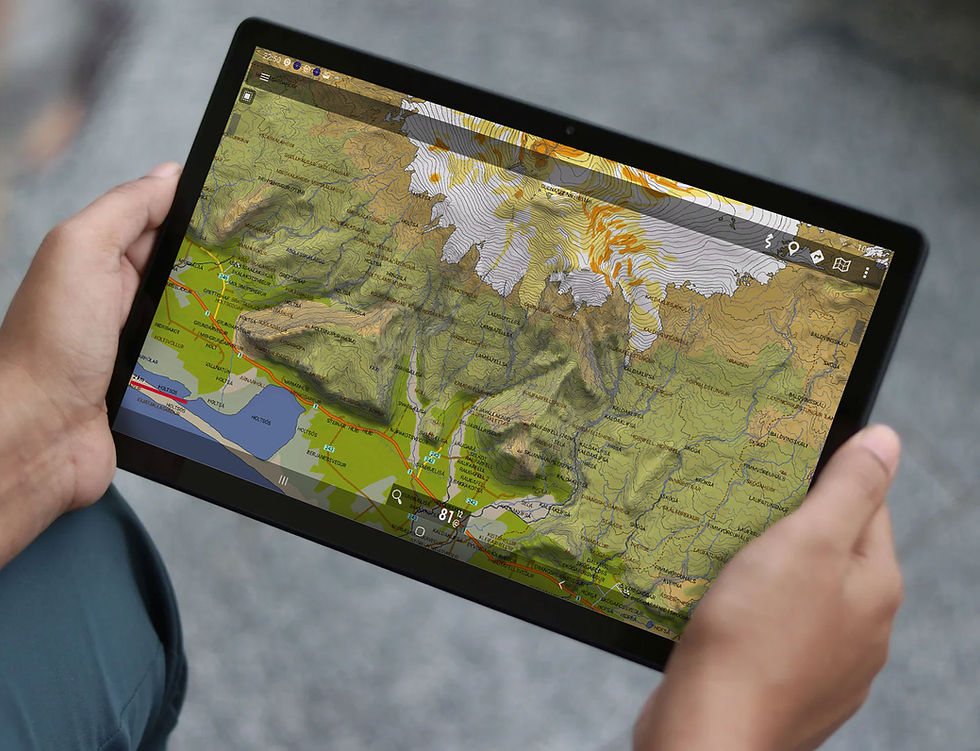
Add KML overlay in OruxMaps
Jan 25
1 min read

If you have downloaded a file in KML file format in our EXTRAS portion of the website, here is detailed instructions of the process to add it as an overlay for your Iceland map:
Download the KML file
To move the file to your correct Overlay folder on your device. Go first to Global settings > App storage and see the location given for "KMZ/KML/SHP overlays directory". Add the file into that given folder.
Open OruxMaps and click the Map icon and select Overlay option -> Manage overlays
A "Tweak Overlay" drawer should open from the bottom, press the 2nd button with the plus sign
It will ask "Do you want to load a new overlay", press YES button and then select the KML file and press OK
That's it!